
Effective Tips for Setting Boundaries with Notifications
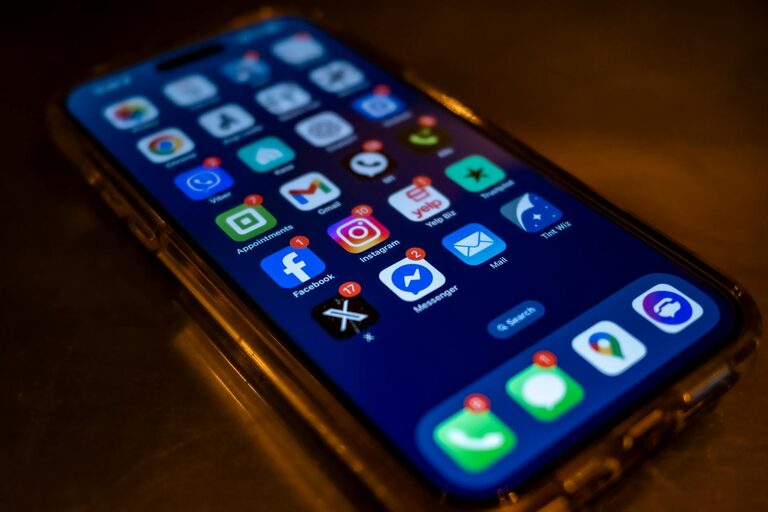
In today’s hyper-connected world, notifications are everywhere—popping up on our phones, computers, and even smartwatches. While they can be useful reminders, constant alerts can disrupt focus, increase stress, and reduce productivity. Setting boundaries with notifications is essential for maintaining balance and staying in control of your time and attention.
In this post, we’ll explore practical tips to help you manage notifications effectively and cultivate a healthier digital routine.
Why Setting Boundaries with Notifications Matters
Notifications are designed to grab your attention, often interrupting your current task. Over time, this can lead to fragmented focus and a feeling of being overwhelmed. By consciously managing when and how you receive notifications, you can:
– Reduce distractions and improve concentration
– Lower stress and digital fatigue
– Gain back valuable time for deep work or relaxation
– Enhance your overall productivity and wellbeing
Let’s look at how to create these boundaries in your daily digital experience.
Step 1: Audit Your Notifications
Start by taking inventory of all the apps and devices sending you notifications. This audit helps you identify which alerts are essential and which are unnecessary.
– Go through your phone’s notification settings for each app.
– Note which notifications you receive on other devices (laptop, tablet, smartwatch).
– Decide which notifications truly require your immediate attention.
By understanding your current notification landscape, you’ll be able to make intentional choices about what to keep and what to silence.
Step 2: Customize Notifications for Each App
Not all notifications have equal value, so customize them individually:
– Prioritize important alerts: Allow notifications from work email, calendar updates, or family messages.
– Mute non-urgent apps: Social media, games, and shopping apps often send frequent and non-critical alerts. Consider turning these off or limiting alerts to only direct messages.
– Use “Do Not Disturb” modes: Many devices allow scheduling quiet hours when only certain contacts or apps can notify you.
Customizing notifications helps you avoid unnecessary interruptions while staying informed about key events.
Step 3: Set Specific Times to Check Notifications
Instead of responding the moment a notification arrives, try batching your attention:
– Choose 2–3 times a day to review messages and alerts.
– Turn off all notifications outside these windows to minimize distractions.
– Use timers or reminders if needed to stick to your schedule.
This approach encourages mindful checking rather than constant reacting, increasing your focus and reducing digital overload.
Step 4: Utilize Focus or Priority Modes
Modern devices often offer focus modes that allow you to tailor notification delivery:
– Focus modes: These can block notifications except from selected contacts or apps during certain activities, like working or sleeping.
– Priority modes: They allow only important notifications through while silencing the rest.
Explore your device’s options (like iOS Focus, Android’s Do Not Disturb controls, or Windows Focus Assist) to leverage these helpful tools.
Step 5: Manage Group Notifications and Badges
Group notifications combine multiple alerts into one, reducing clutter. Badge icons show unread notifications on app icons but can also cause distraction:
– Enable grouped notifications to avoid being bombarded one alert at a time.
– Consider turning off badge icons if they trigger unnecessary checking.
– Clear notifications regularly to avoid buildup.
These small habits help streamline your notification feed and lower the urge to interrupt your workflow.
Step 6: Create Tech-Free Zones and Times
Set boundaries around where and when you allow notifications:
– Designate areas in your home, like the bedroom or dining room, as no-device zones.
– Establish device-free times, such as during meals, family time, or before sleep.
– Inform family or coworkers about your notification boundaries to manage expectations.
Creating these intentional spaces helps you disconnect and recharge without constant digital interruptions.
Step 7: Use Alternative Communication Methods
Consider if some notifications can be replaced with less intrusive communication:
– For team updates, try scheduled emails or daily summaries instead of instant messages.
– Use shared calendars or task lists so people can check updates when convenient.
– Encourage phone calls or face-to-face chats for urgent matters.
This can reduce the volume of notifications asking for immediate attention while keeping essential communication flowing.
Step 8: Reflect and Adjust Regularly
Notification preferences may need tweaking over time:
– Periodically revisit your notification settings to remove unnecessary alerts.
– Take note of what notifications stress you or distract you most and adjust accordingly.
– Experiment with different strategies and focus modes to find what works best.
By staying mindful and adaptable, you maintain control over your notification environment.
Final Thoughts
Setting boundaries with notifications is a simple yet powerful step toward a healthier digital lifestyle. By auditing your alerts, customizing settings, batching review times, and creating tech-free zones, you can reclaim your attention and reduce stress.
Try implementing one or two of these tips today and notice how managing notifications intentionally can improve your focus and overall wellbeing. Remember, technology should serve you—not the other way around!
—
If you found this post helpful, feel free to share your best notification management tips in the comments below. Let’s create healthier digital habits together!